A separate cart for every branch, site and job
The buyer runs as many orders at once as they have projects. Every cart has a name and an amount visible in the store header, and a product goes to the chosen one in one click. A finished cart can be handed to a colleague, printed with prices or turned into a request for quote.
Why it exists
One cart for several orders at once
Magento gives the customer one cart. A buyer collecting goods for two branches and one site mixes everything in one place or keeps lists in a spreadsheet beside the store. At the end they split the order by hand, and a mistake is easy.
The second trouble is working in shifts. An assistant prepares the order, and a manager with the right to that amount places it. Without a cart handover someone has to type everything again.
Multiple carts
What it does in the store
Named carts with a switcher
The switcher in the header shows every cart with its name, line count and amount. An employee has up to 50 carts, each up to 300 lines.
Add to any cart
The button on a product adds to the current cart, and its dropdown sends the line to another or creates a new one. It works on the product page, the list and in search results.
Handing a cart to a colleague
A cart passes in full to another employee of the same company. Address, shipping and payment the receiver picks themselves.
A duplicate in one click
The copy keeps lines, quantities and the note. A recurring set starts from a duplicate, not from an empty cart.
Export, printout and PDF with prices
A spreadsheet, a print view and a PDF with the company price, line value and date, for approval in-house. A corrected spreadsheet comes back to the store through quick order.
A request for quote from the cart
A finished cart turns into a request to the account manager with one button, with the expected price on the lines.
What it looks like in the store
Multiple carts on the demo store’s screens
Real screens, not mockups. The demo store runs in Polish; a rollout ships in your store’s languages. Click a row, and where there is a phone capture switch the view or zoom in.
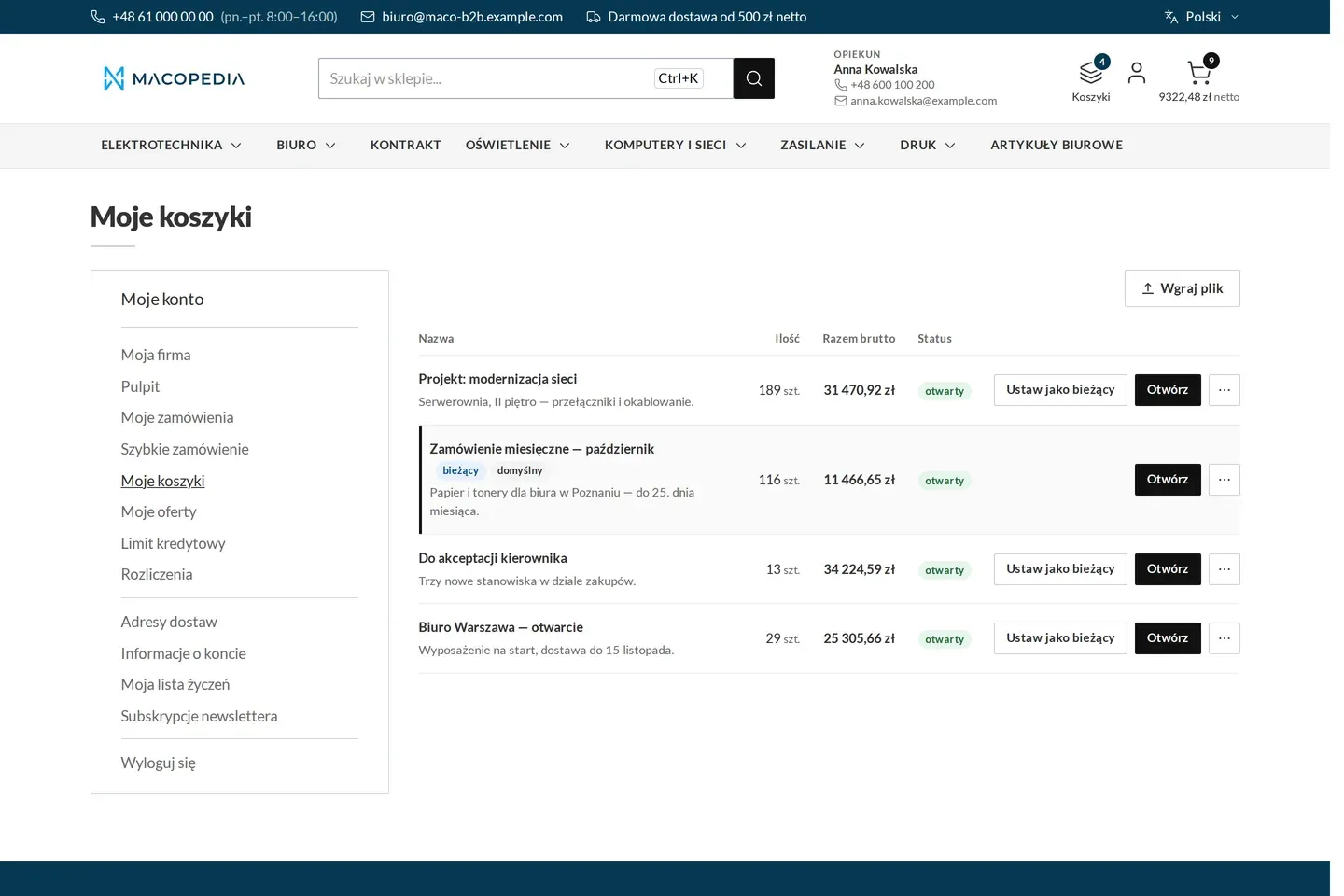
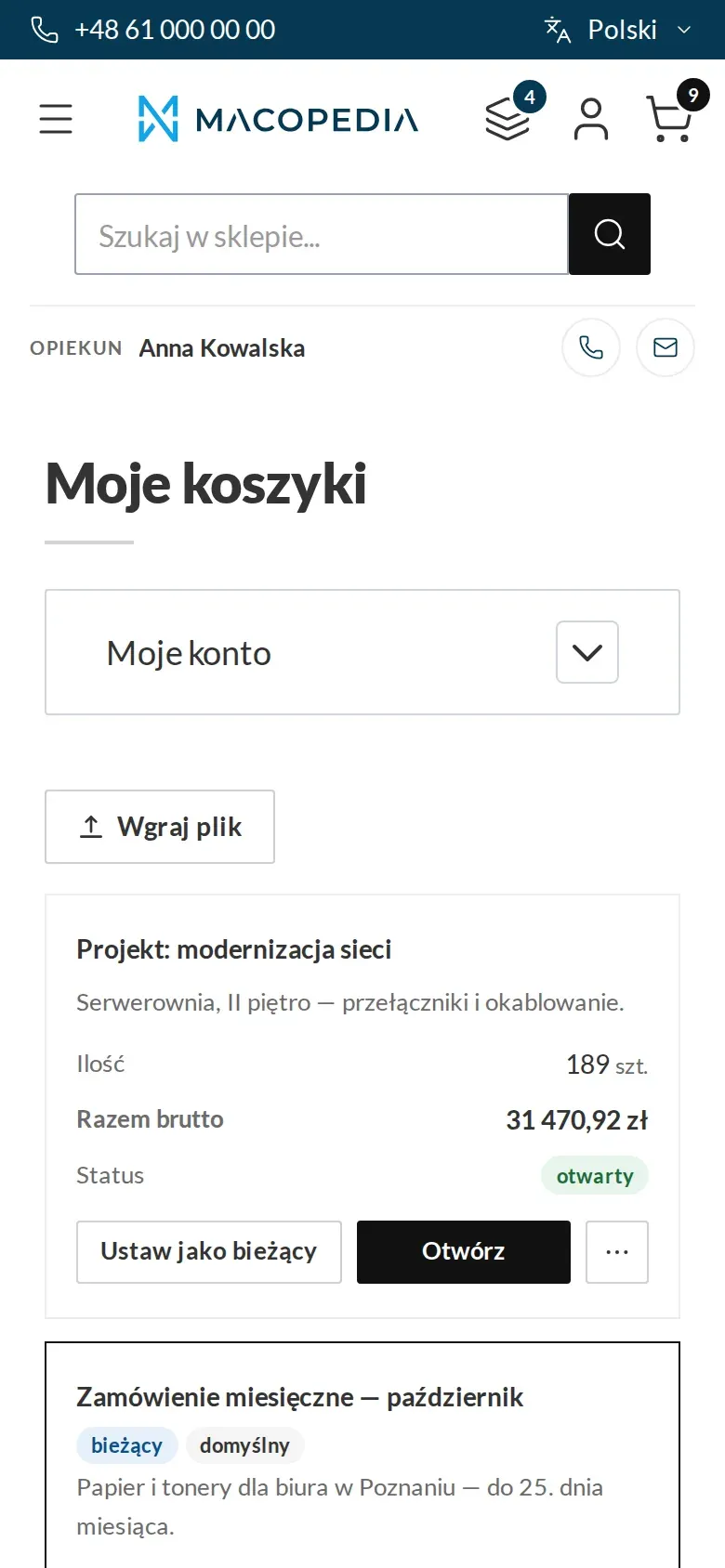
List of the company’s named carts with the current cart and actions 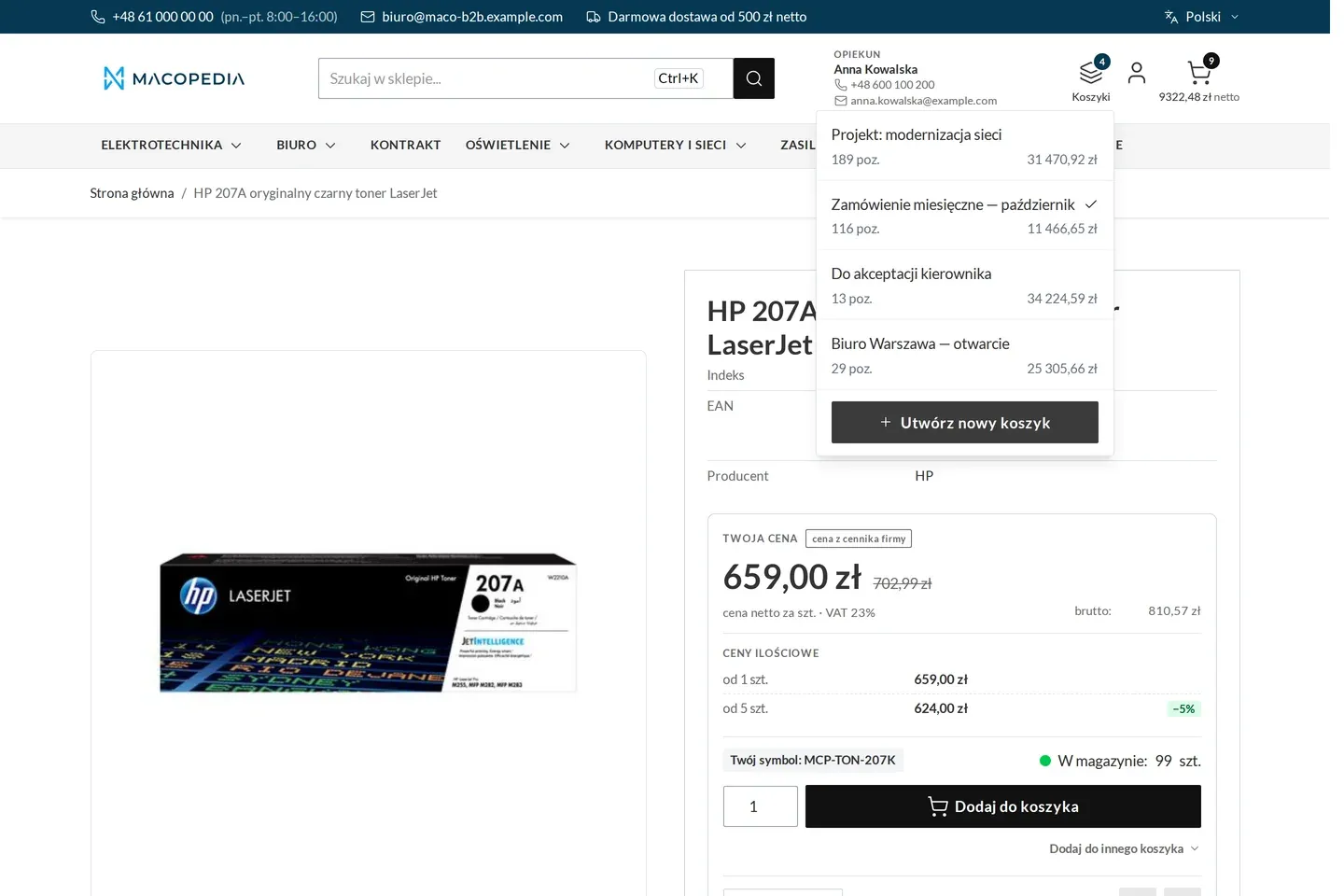
Cart switcher expanded in the store header 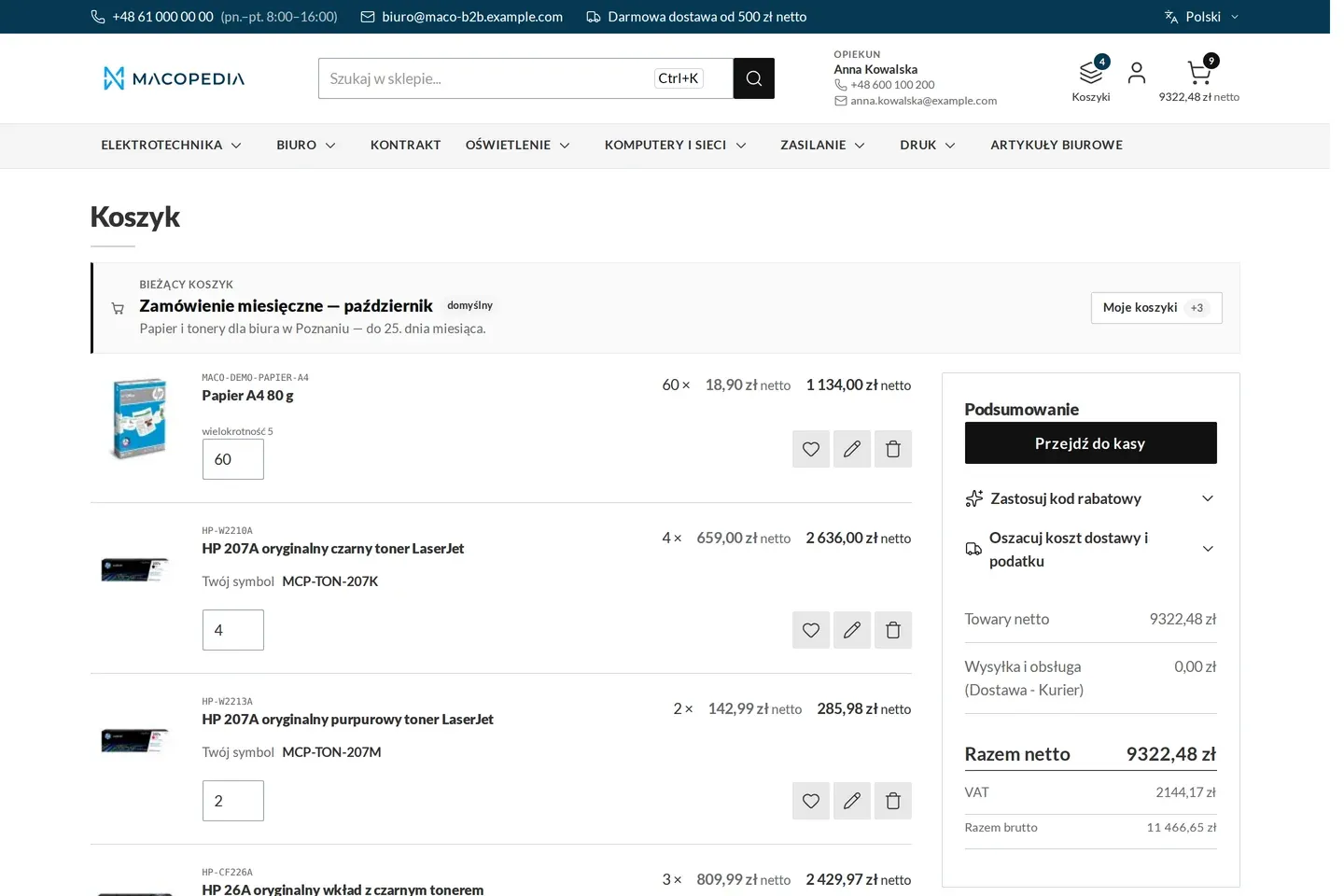
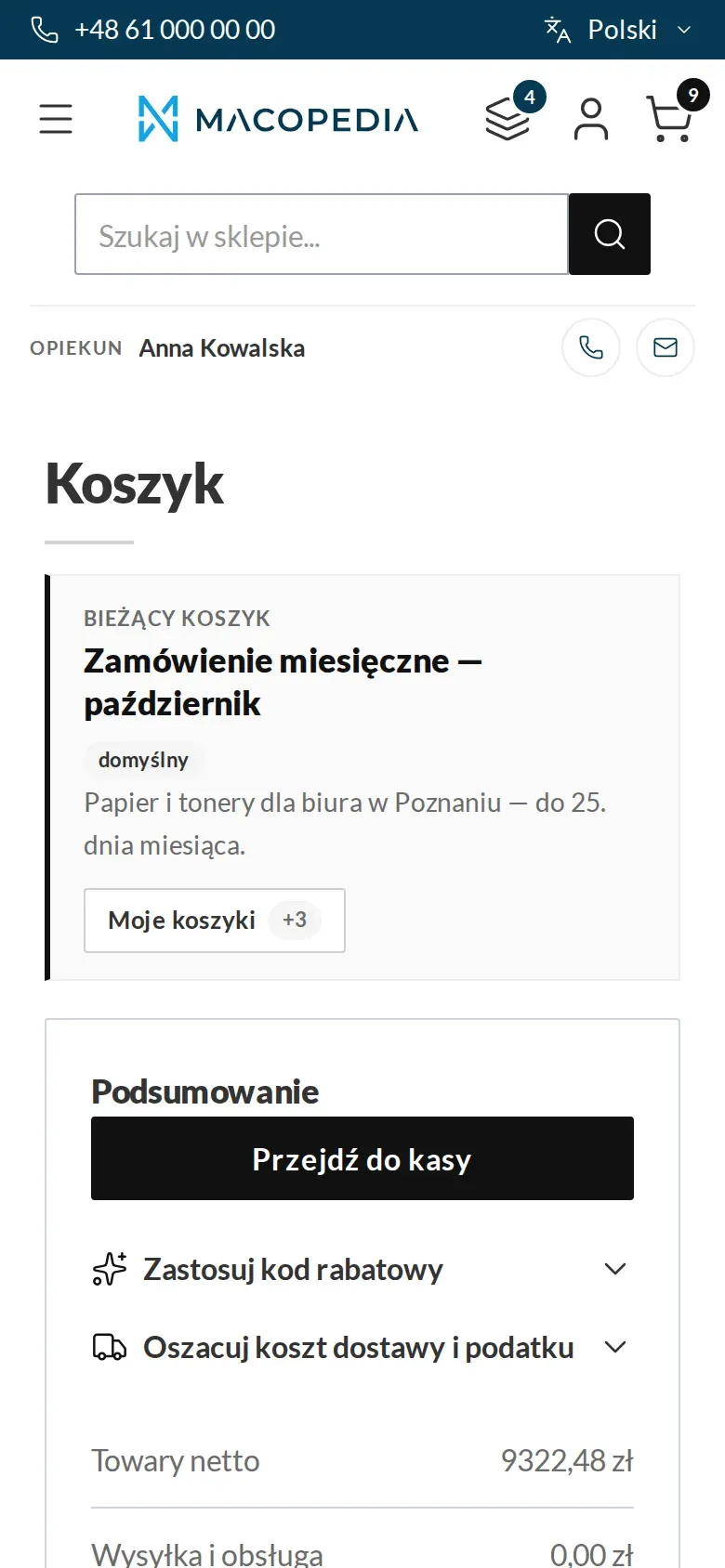
Cart with the current cart’s name and a net and gross summary 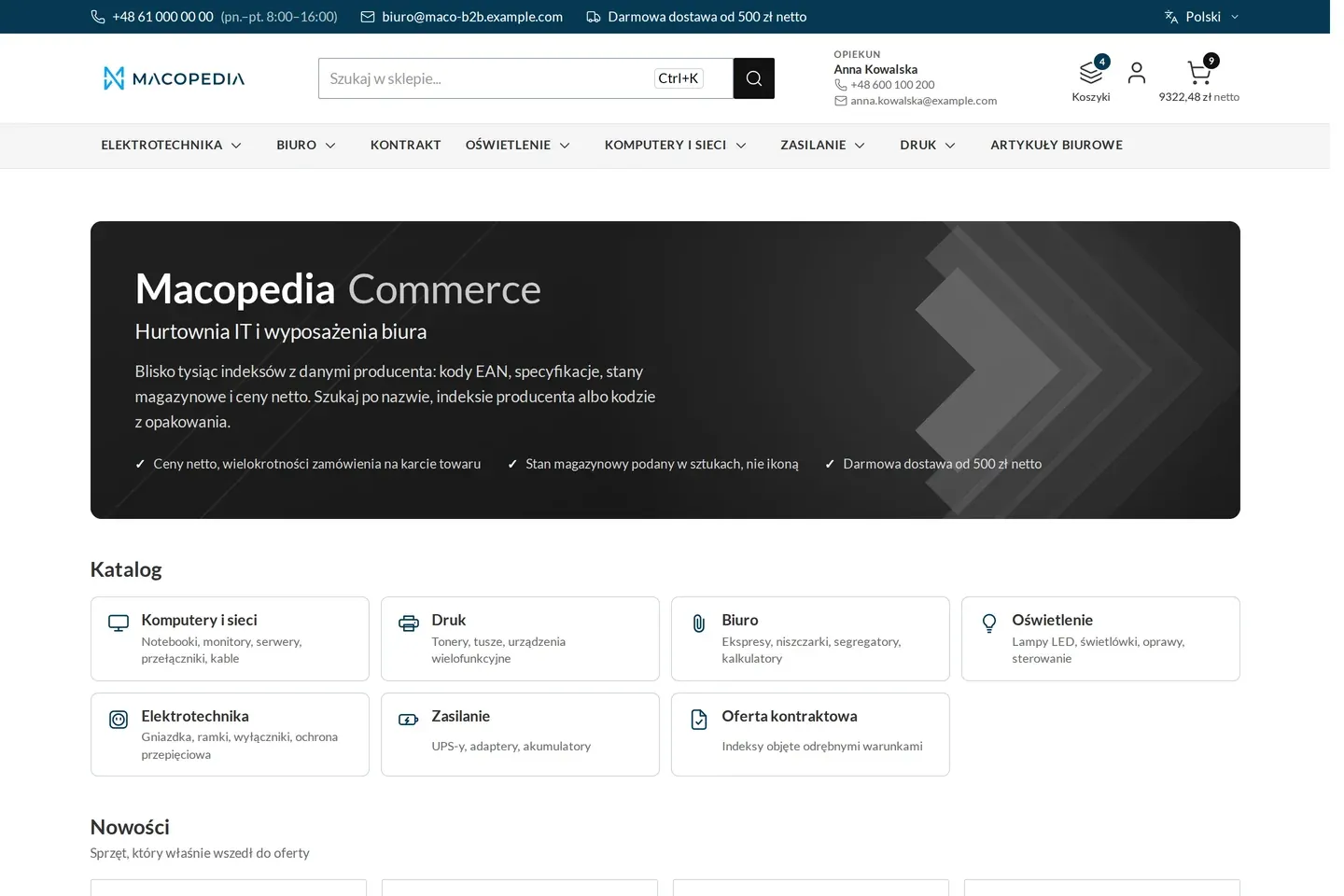
Wholesaler home page after a company buyer signs in, with the account manager and carts in the header 
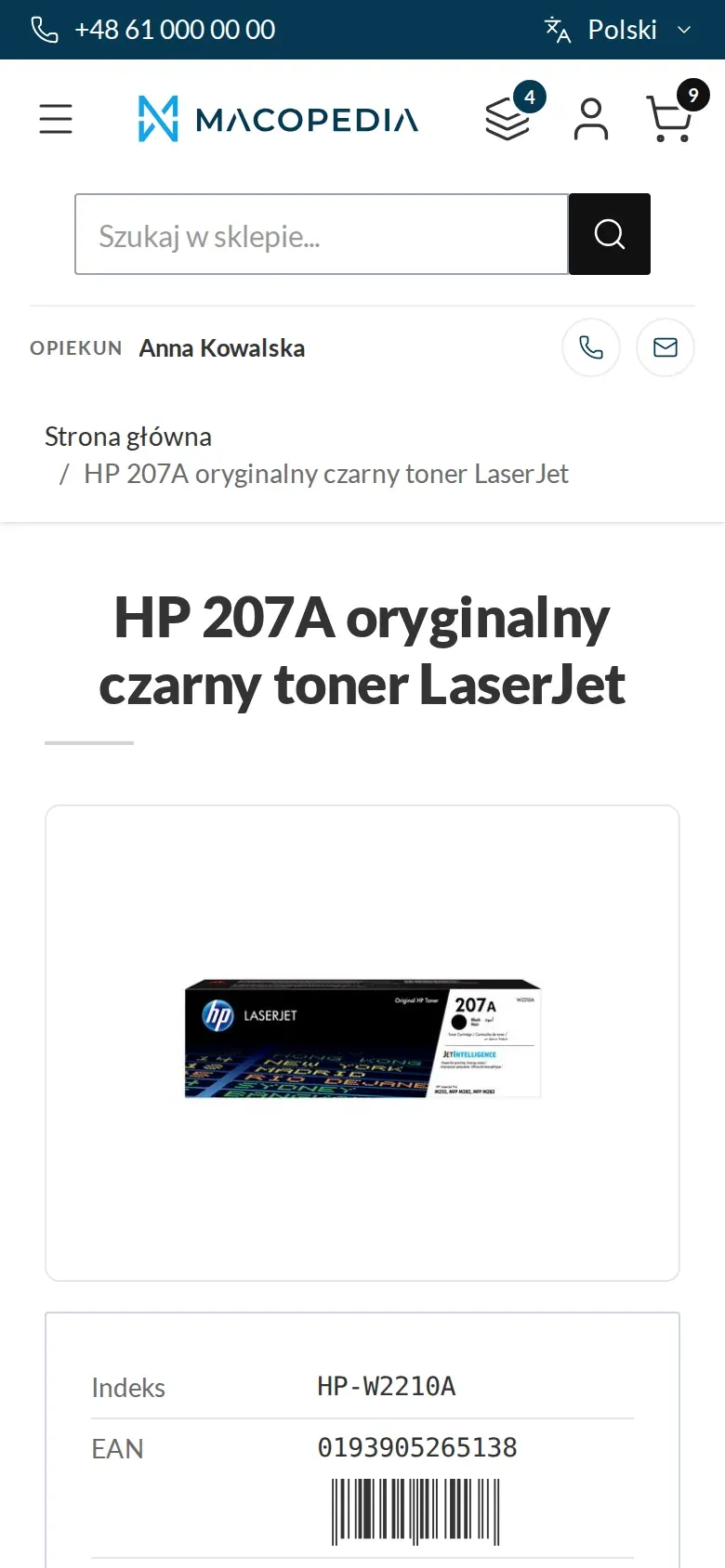
Product page with the company price, tier prices and the buyer’s own product code 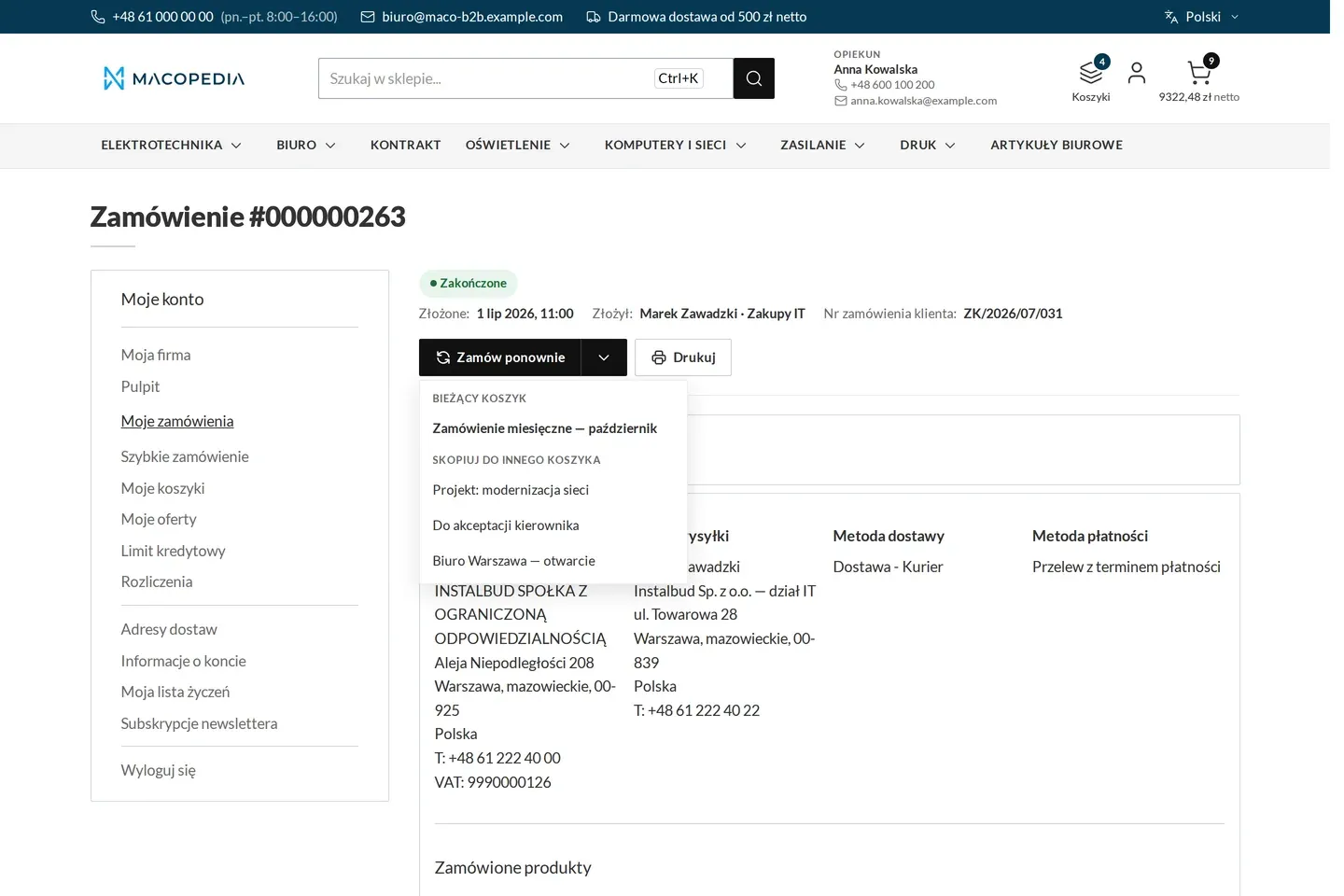
Reorder with a choice of target cart
01 / 06
Who uses it
Every role gets what it needs at work
Buyer
Runs a separate cart for every site, branch or job and switches between them from any page of the store. The note on a cart stays with them alone, and a filter quickly finds a line among a few hundred.
Company administrator
Does not see employees’ carts, because every cart is private. When an employee leaves the company their carts are disabled, so whatever should survive is handed to a colleague beforehand.
A worked example
Three sites, three carts
01 A cart for every site
Marek from Instal-Serwis creates the carts “Lipowa”, “Mokotów school” and “Warehouse”. The switcher in the Delta Hurt store header shows the amount of each.
02 Goods where they belong
On a radiator’s page Marek opens the add button’s dropdown and sends the product to “Mokotów school”, although he is working in the “Lipowa” cart.
03 A printout for approval
He prints the “Mokotów school” cart with his company’s prices and takes it to the project manager.
04 Handover
The order exceeds Marek’s spending threshold, so he hands the cart to his manager, Paweł. Paweł sees it marked “handed to you” and places the order.
05 The rest waits
The “Lipowa” and “Warehouse” carts stay untouched. Marek comes back to them next week.
For the IT team
Where the data comes from and how to integrate it
The module stands on the native Magento cart, so all product types, customer prices, taxes, minimums, shipping and payment work unchanged. No second line register is created.
The cart list, switching, handover, duplicate, bulk operations and export are available in the REST API. The current cart is shared between the store and REST, so an integration hits the same cart as the buyer.
The cart view is the native Hyvä cart extended with the module’s components. Prices come from the customer price lists fed from the ERP through Maconnector.
FAQ
Questions: multiple carts
Can several people work on one cart?
Are there shopping lists?
Is the price in the cart frozen?
What happens to the cart after the order is placed?
We will show you this on your company’s data
The demo runs on a scenario from your sales: your customers, your price lists, your ERP. After an hour you know what you get at once and what we set up in the rollout.