Every employee buys on behalf of the company, within their own limits
The customer is a company, not a single person. Its employees have their own sign-in, roles and a spending threshold, and orders land on the right department. The administrator on the customer side manages all of it alone, without calling the account manager.
Why it exists
Magento knows the customer, but not the company
Magento on its own sees a single account in a price group. There is no company with a tax ID, no branches and no employees with different permissions. In practice the whole company signs in with one password, or every employee has a separate account that nothing ties to the rest.
The consequences show up in service. Nobody knows who placed an order or for which branch. A new employee at the customer means a call to the account manager. When sales to a company have to be suspended, accounts are blocked one by one and one always stays open.
Company accounts
What it does in the store
An account of its own for every employee
The company administrator invites an employee by e-mail. The employee gets their own login, password and notifications, and the account is tied to the company.
Company administrator and buyer
Two roles with a ready set of permissions. The company administrator can change what buyers may do, and the store checks it on every operation.
Spending threshold per order
The administrator sets a net amount per employee above which an order will not go through. The employee sees their threshold on the account.
Departments, and branches with a payer
The employee picks the department they buy for at checkout, and the cost goes to the right department. A branch is a separate company with its own employees, and its invoices go to the head office that pays for it.
Blocks and confirmation by customer service
The seller can cut off a company’s sign-in, hold its orders, switch off its trade credit or make customer service confirm every order on trade credit. It applies to the whole company at once.
Customer codes on the products
The customer sees their own code on the product, the one they use in their own system. Codes come from the ERP, from the panel or the customer adds them.
What it looks like in the store
Company accounts on the demo store’s screens
Real screens, not mockups. The demo store runs in Polish; a rollout ships in your store’s languages. Click a row, and where there is a phone capture switch the view or zoom in.
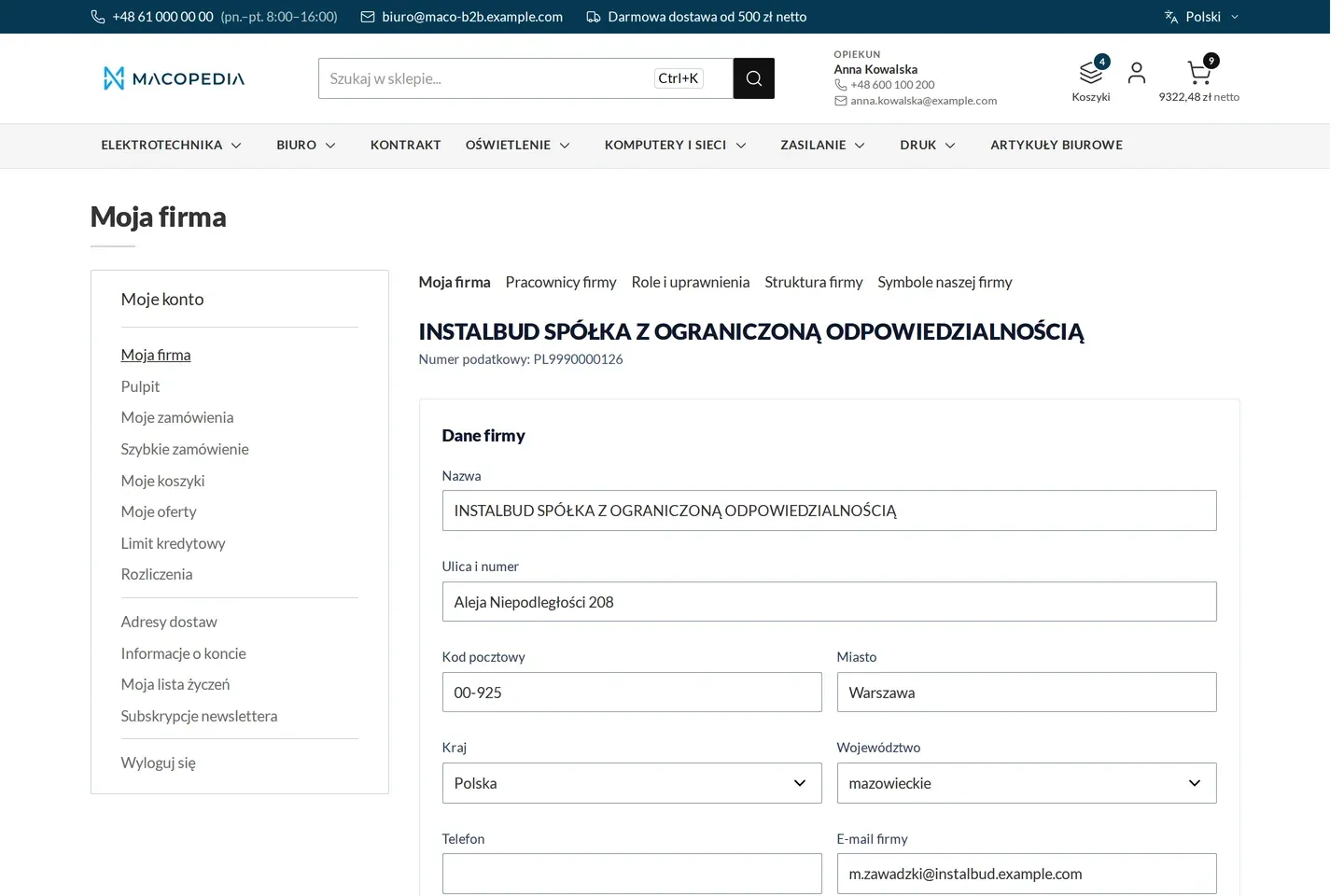
Profile of the buying company with the invoice address and the account manager 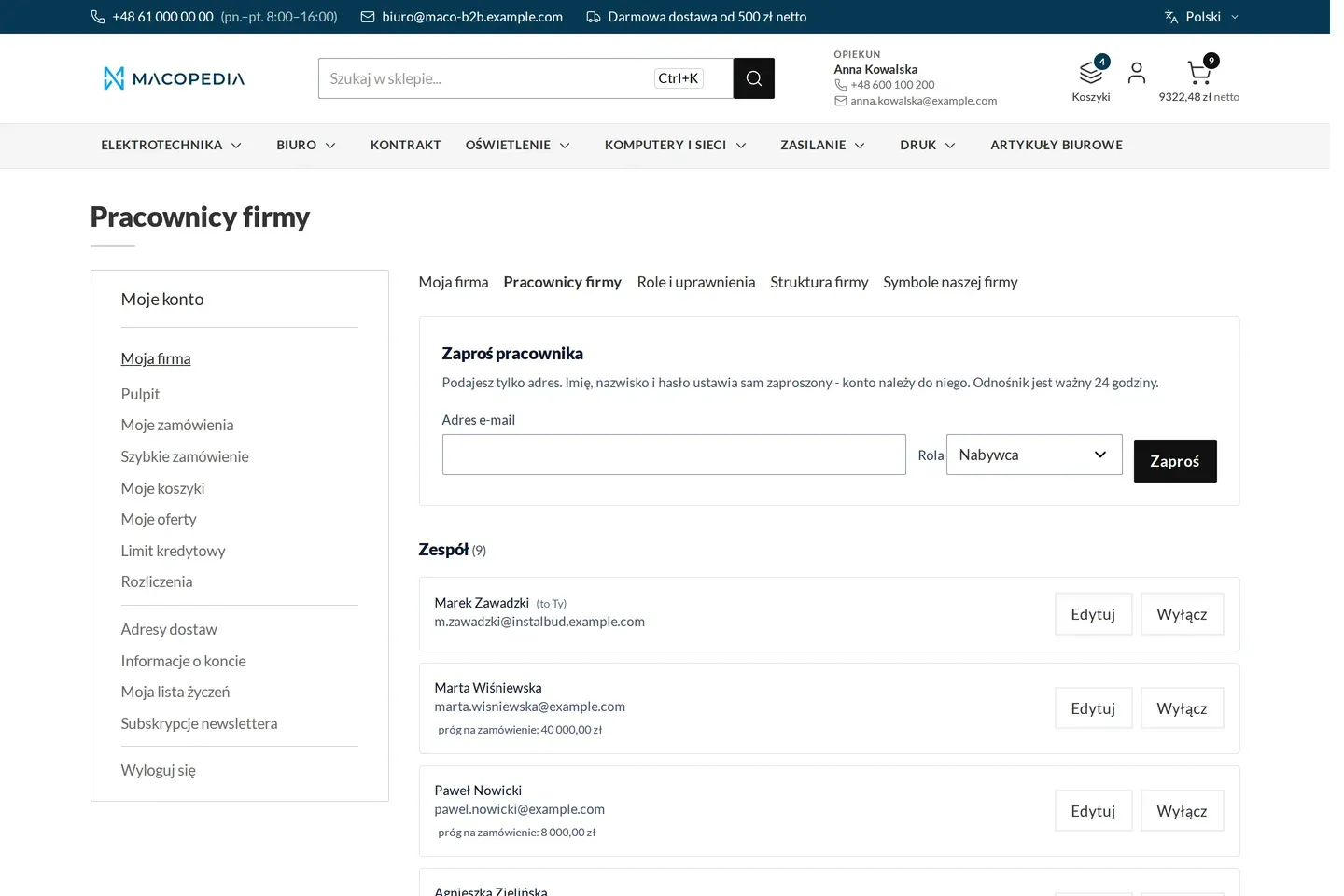
Company employees with order thresholds, an invitation and a disabled account 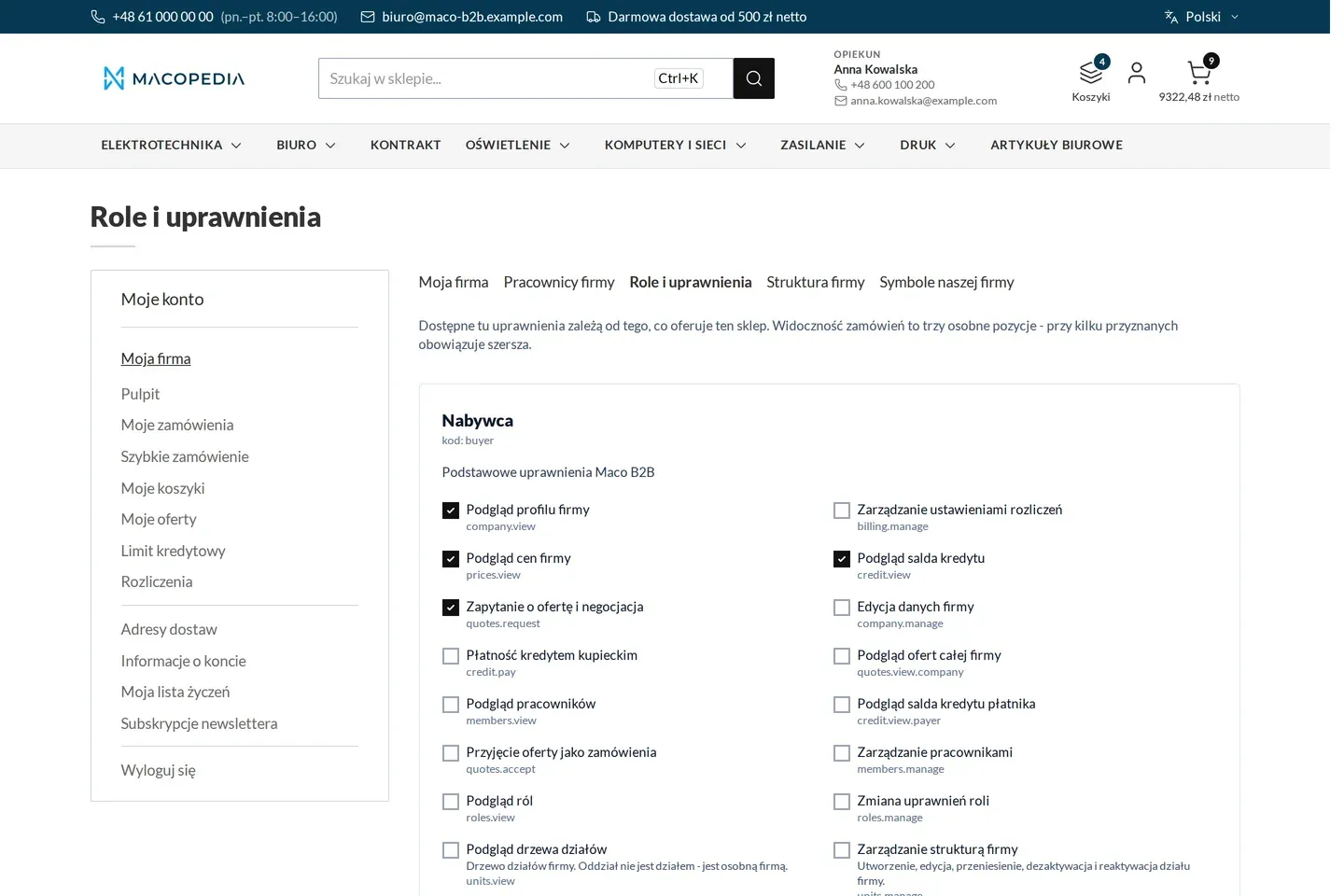
Company roles with a list of permissions 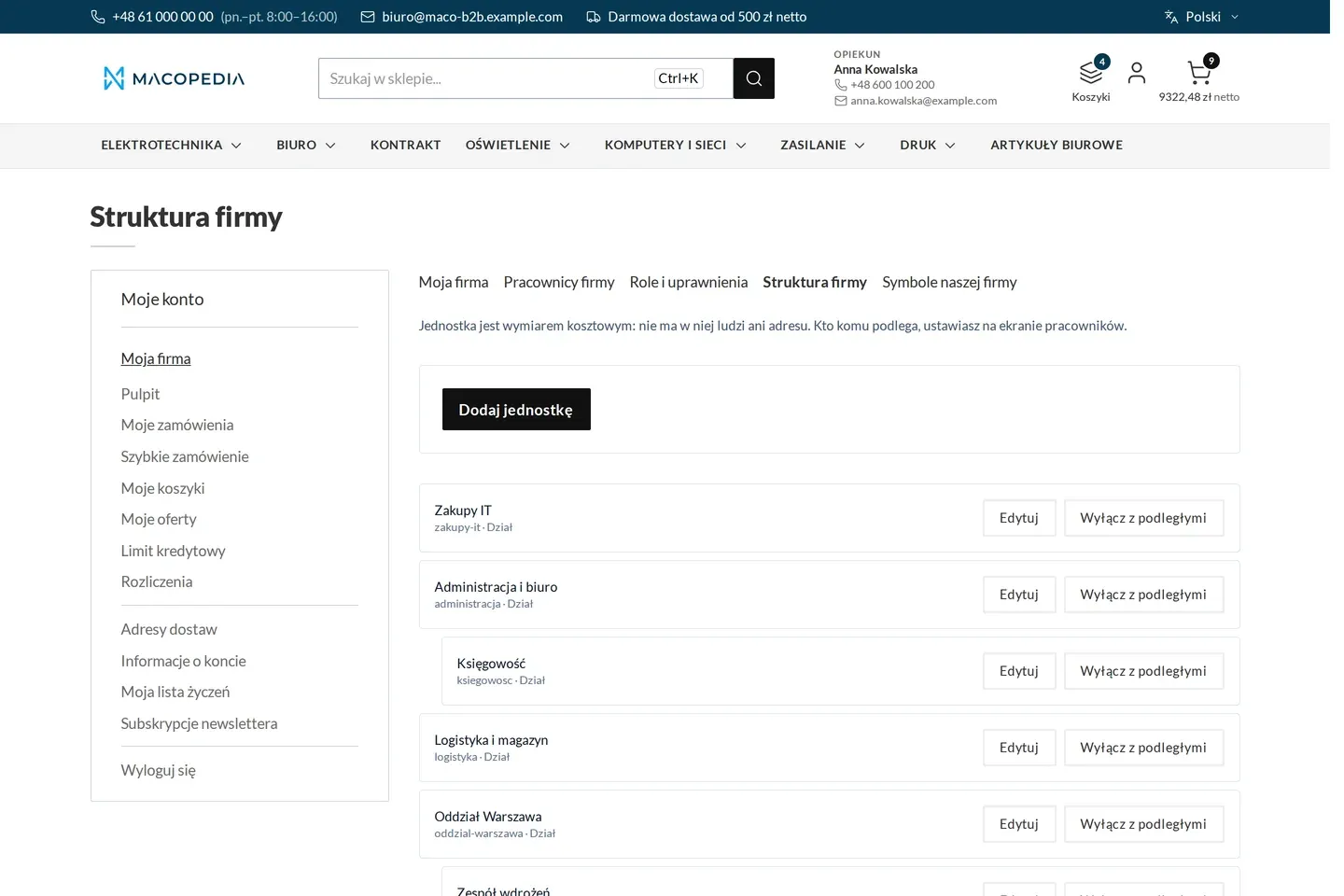
Company structure: departments and teams as a tree 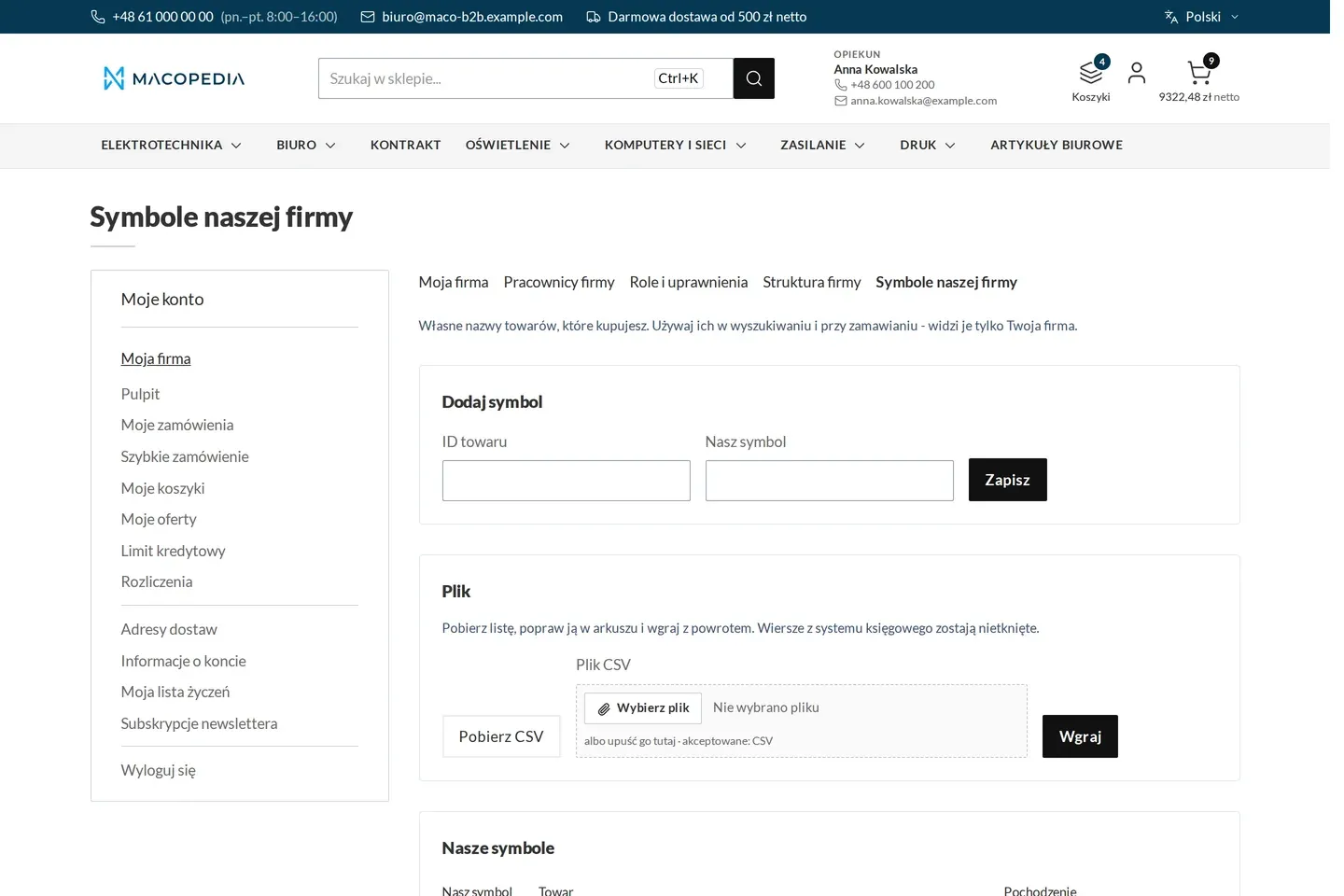
The company’s own product codes with an import from file 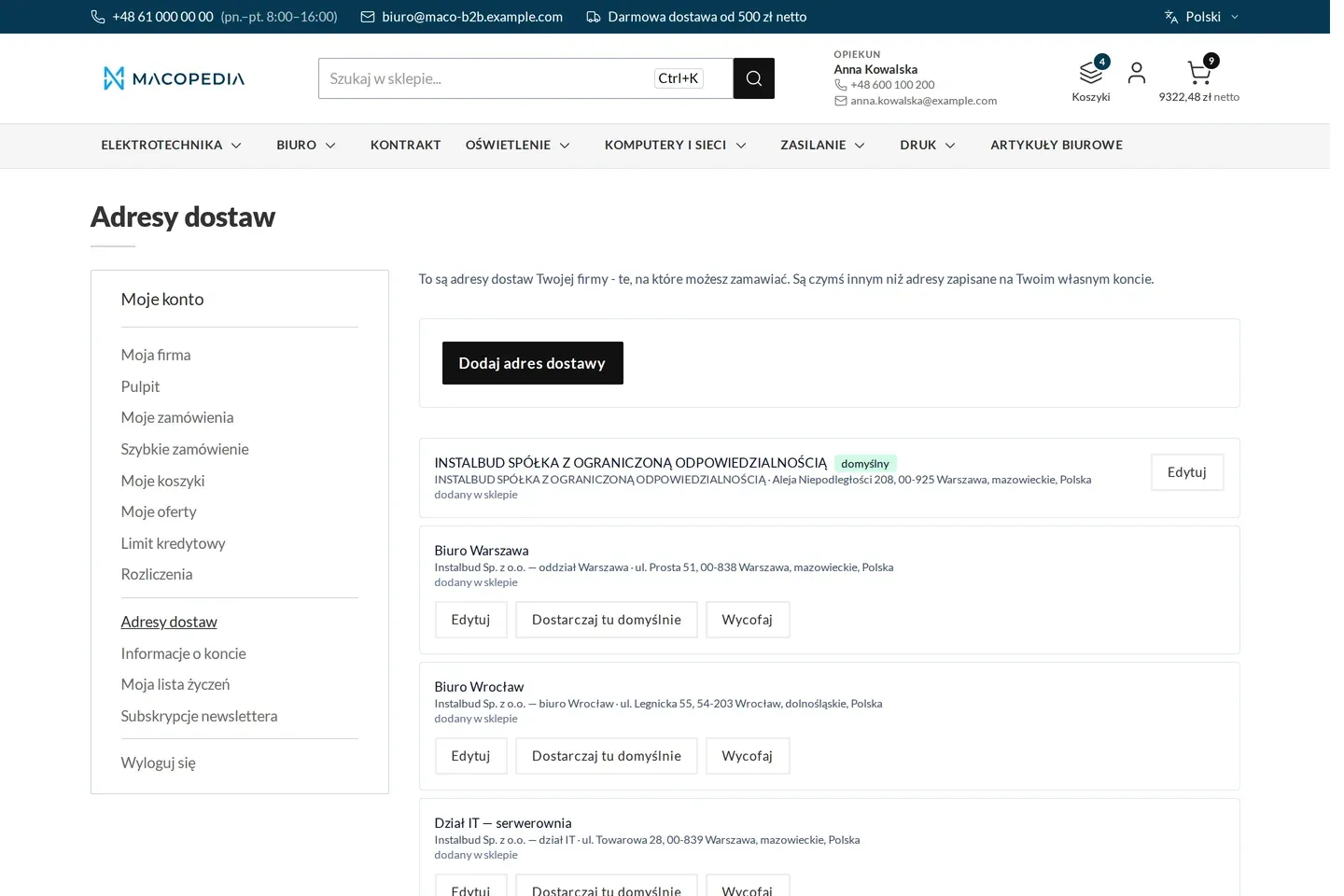
The company’s delivery address book with addresses assigned to units 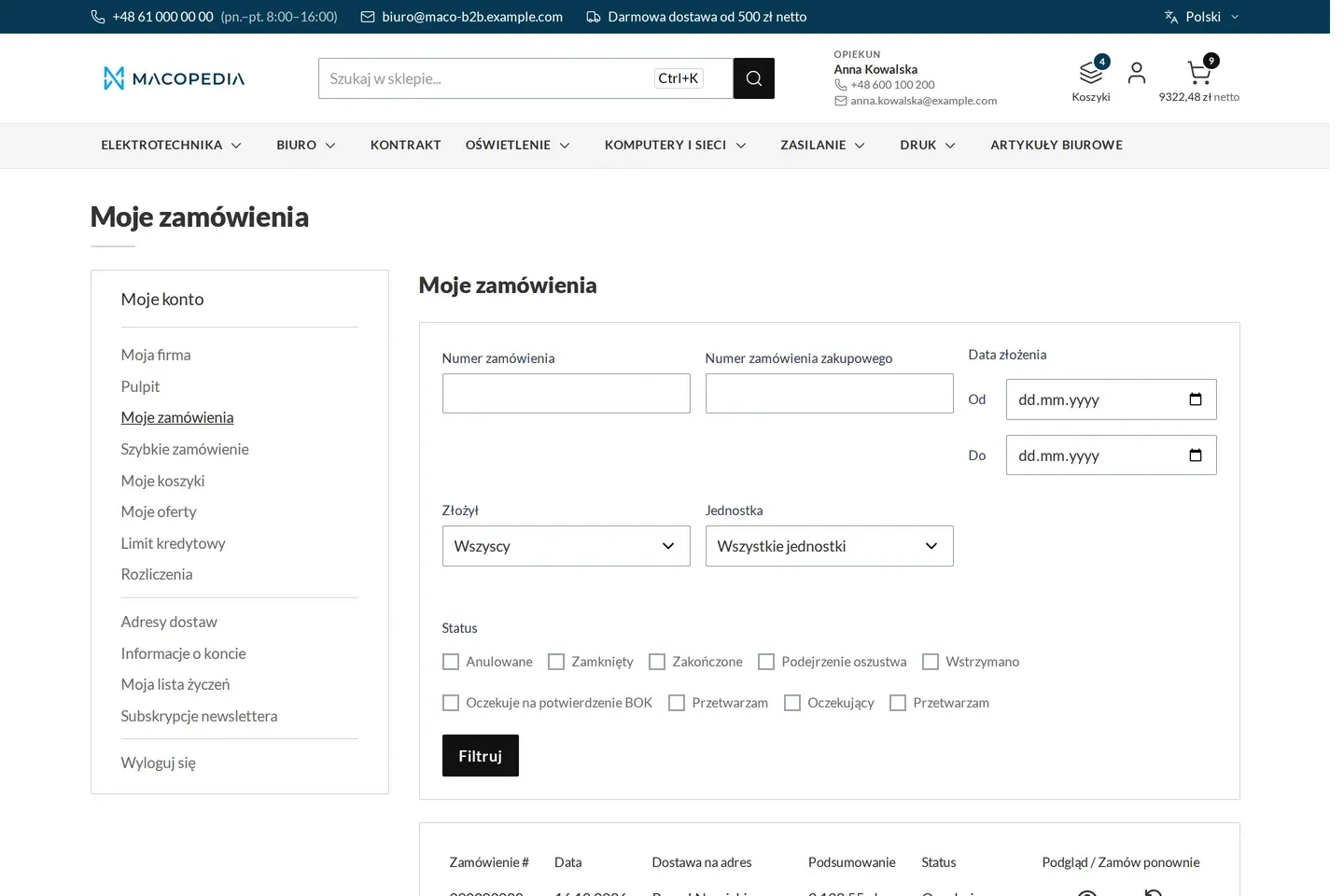
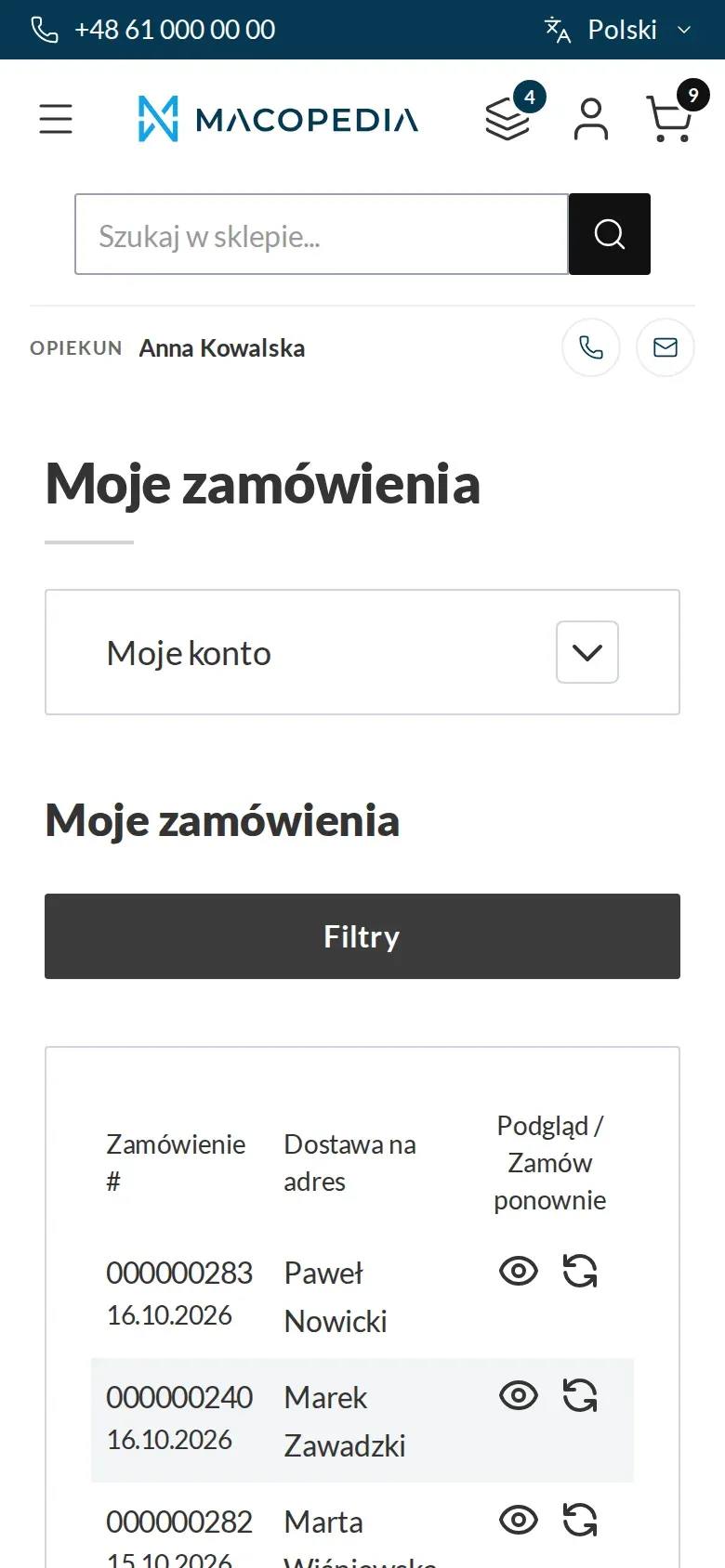
Company order history with filters by person and unit 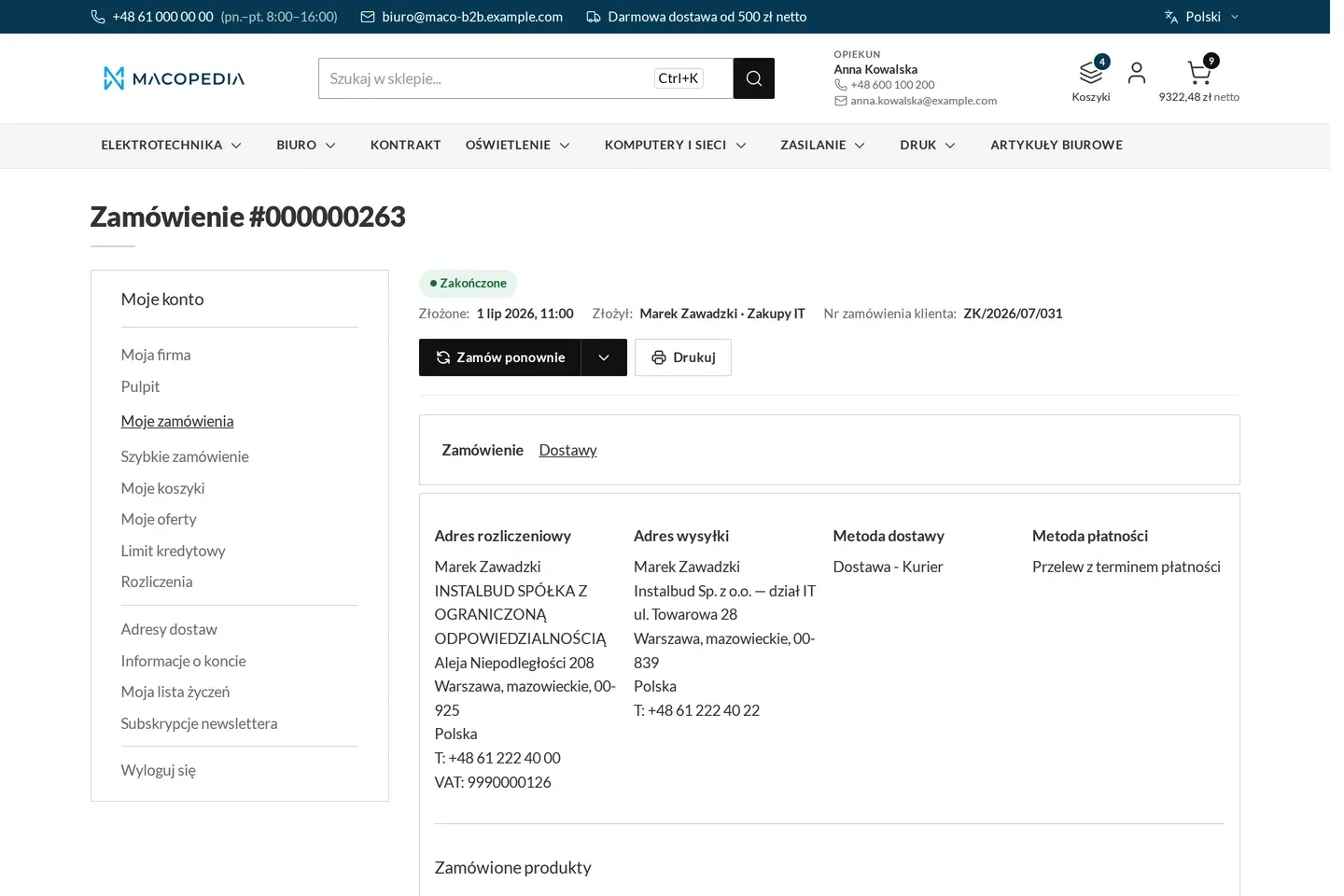
Order with who placed it, in which unit and under which customer number
01 / 08
Who uses it
Every role gets what it needs at work
Buyer
Orders on behalf of the company within their role and threshold. Picks the department at checkout and sees the details of their account manager.
Company administrator
Invites and disables employees, assigns roles, sets thresholds and supervisors. Describes departments and sees the orders of the whole company, and at a head office the orders of its branches too. It does not create a branch itself, since a branch is a separate company.
Account manager
Is assigned to the company and visible on the account of each of its employees, with name, photo and contact details.
Customer service
Creates the company and invites its first administrator, and sets the head office as a branch’s payer. Applies blocks and confirms or rejects the trade-credit orders that need it.
A worked example
Instalbud, a customer of Delta Hurt, puts its purchasing in order
01 Customer service creates the companies
Delta Hurt adds Instalbud and sends an invitation to Ewa, who becomes the company administrator. It creates the branches in Kraków and Katowice as separate companies, with Instalbud as their payer.
02 Ewa builds the structure
She adds the Service and Installation departments. She invites Marek as a buyer with a threshold of PLN 5,000 net per order.
03 Marek orders for a department
At checkout he picks the Service department. The invoice goes to Instalbud, and the order records who bought and for which department.
04 The threshold stops a larger purchase
A cart of PLN 7,000 does not go through, and Marek sees why. Ewa places that order herself or raises his threshold.
05 Ewa sees the whole picture
In the company’s order history she has every purchase with its author and department, and beside them the orders of the Kraków and Katowice branches that Instalbud pays for. The “only mine” filter takes her back to her own.
For the IT team
Where the data comes from and how to integrate it
Companies, employees, roles, departments, a branch’s payer and product codes are available in the REST API, with the same rules as in the store. Permissions are checked by the server, so a hidden button is not the only safeguard.
Company data can come from the ERP through Maconnector. The company is identified by its ERP record, not by the tax ID, which is not unique: a head office and its branches can share one. Writes by ERP record are repeatable, and where the ERP owns the data the company administrator cannot change it in the store.
An employee is an ordinary Magento customer account, with no second sign-in mechanism. The “My company” screens and the checkout elements are built on Hyvä and Hyvä Checkout.
The module also sets the catalogue visibility mode per website: catalogue without prices, with base prices, or the whole store behind a login.
FAQ
Questions: company accounts
Do the customer’s employees have to share one account?
What happens when an employee exceeds their threshold?
Can we hide prices from visitors who are not signed in?
Does a blocked company still see the store?
We will show you this on your company’s data
The demo runs on a scenario from your sales: your customers, your price lists, your ERP. After an hour you know what you get at once and what we set up in the rollout.